
Purpose
Use an Assemble & Hold ticket to submit and track an assembly or hold request associated with one or more sales orders.
|
A&H Eligibility Use this process for opening orders that include tabletop and smallwares items. This process is used for orders OVER $5,000 or 50 line items. It does not cover equipment or equipment delivery. Place an A&H order only if the salesperson instructs you. |
Before You Begin
Have the following information available:
- Customer/company and account number
- Desired delivery date
- Associated sales representative
- Warehouse location
- Sales order number or numbers
- Any special delivery instructions, freight information, or other requirements
- Relevant company, deal, contact, or existing ticket records
- Deal: Associate the related deal when applicable.
- Contact: Associate the appropriate customer or internal contact when applicable.
- Ticket: Associate another ticket when the request is connected to an existing issue or effort.
- Changing the delivery date
- Adding another Sales Order
- Providing additional instructions
- Communicating information to the Ticket Owner
- Shipped Complete
- Shipped with Backorders
- Use A&H for qualifying tabletop and smallwares opening orders.
- Do not use A&H for equipment or equipment delivery.
- Submit an A&H request only when instructed by the salesperson.
- Prefer creating the ticket from the Company record.
- Verify the Company's account number against Prelude.
- Associate the correct Company record with every ticket.
- Select the actual Sales Owner, not the support person.
- Submit requests at least two weeks before delivery whenever possible.
- Enter multiple Sales Orders as 12345,12346,12347 with no spaces.
- Leave new tickets in Submitted.
- Do not manually advance the ticket.
- After submission, communicate changes using a Note.
- @ mention the current Ticket Owner when their attention is required.
- Do not use the ticket's Email button for A&H updates.
- Use Sales Owner, not Ticket Owner, when building monitoring views.
- Tracking information appears under Shipping Details once the ticket reaches a shipped stage.
Whenever possible, submit the request at least two weeks before the desired delivery date.
Create the A&H Ticket Preferred Method: Create from the Company Record
Creating the ticket directly from the Company record is the preferred method because the Company association will populate automatically.
-
In HubSpot, navigate to CRM > Companies.
-
Search for the customer/company.
-
Verify that the account number in HubSpot matches the account number in Prelude.
-
Open the correct Company record.
-
In the right-hand column, locate Tickets.
-
Click + Add and create a new ticket.
-
Select the Assemble & Hold pipeline if it is not already selected.
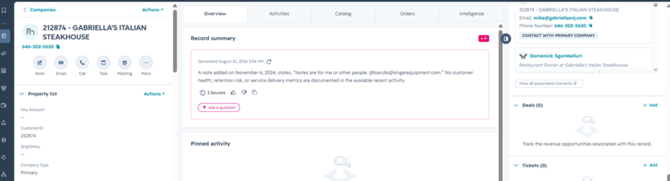
Screenshot: From the Company record, locate the Tickets section in the right column and click + Add.
Secondary Method: Create from the Tickets Page
If creating the ticket directly from the Company record is not practical:
-
Navigate to CRM > Tickets.
-
In the upper-right corner, click Add tickets.
-
Select Create new.
-
Select the Assemble & Hold pipeline.

Screenshot: The Add tickets button is located in the upper-right area of the Tickets page.
Complete the Ticket Fields
|
Field |
Instructions |
|
Ticket Name |
Enter a clear, identifiable ticket name. Include the account number and Company/Account name. Including the Sales Order number can also help identify the request. Example: 123456 - Customer Name - SO 136928 |
|
Pipeline |
Confirm that Assemble & Hold is selected. |
|
Delivery Date |
Enter the desired delivery date. Whenever possible, submit the request at least two weeks before this date. |
|
Sales Owner |
Select the salesperson associated with the order, not the support person submitting the ticket. |
|
Warehouse |
Select either 001 or 008, based on the warehouse handling the request. |
|
Sales Order |
Enter the Sales Order number. For multiple Sales Orders, separate them with commas without spaces. Example: 136928,136929,136930 |
|
Ticket Status |
Leave the status as Submitted. Do not manually move the ticket forward; the established A&H process will update its status. |
|
Ticket Description |
Enter any additional notes, instructions, requirements, freight information, special delivery instructions, or other information needed to complete the request. |
Add Associations
Under Associate Ticket with, associate the records relevant to the request.
Company - Required
The ticket must be associated with the correct Company record in HubSpot. If the ticket was created directly from the Company record, this association should populate automatically.
Verify that the Company and account number are correct before submitting.
Other Associations - As Applicable
Review each association carefully to ensure the ticket is connected to the correct customer and request.
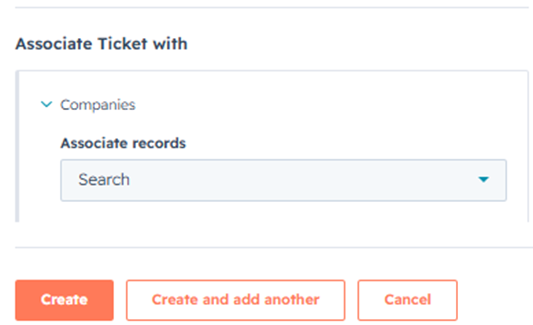
Screenshot: Search for the Company under Associate Ticket with. Click Create after reviewing the ticket and associations.
Submit the Ticket
After reviewing all ticket information and associations:
-
Confirm the Ticket Status is Submitted.
-
Click Create.
Use Create and add another only when you need to immediately enter another Assemble & Hold ticket.
|
Important The ticket must remain in the Submitted status after creation. Do not manually advance the ticket. The A&H process will move it forward as work progresses. |
Make Changes After Submission
If information changes after the ticket has been submitted, update the existing ticket rather than creating a new one.
Examples include:
To make an update:
-
Open the existing Ticket Name.
-
Open Activities.
-
Select Note, or click the Note button directly.
-
Enter the update.
-
@ mention the Ticket Owner when the update requires their attention.

Screenshot: Use the Note action within the ticket to communicate an update after submission.
Do not use the Email button within the HubSpot ticket for these updates.
Do not automatically @ mention a particular warehouse employee. Verify the person currently listed as the Ticket Owner on the ticket and mention that person.
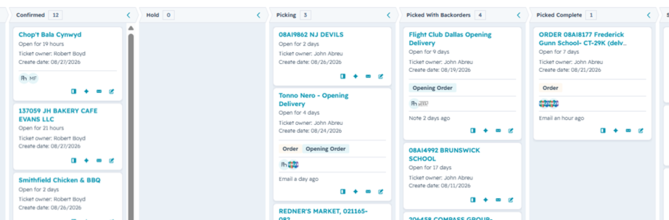
Screenshot: Verify the Ticket Owner shown on the ticket tile before @ mentioning the owner in your note.
Create a View for Your A&H Tickets
You can create a saved Ticket view to monitor A&H requests associated with yourself and the salespeople you support.
-
Navigate to All Tickets.
-
Choose Clone to create a new view.
-
Add a filter for Sales Owner.
-
Select yourself and any or all of the salespeople you support.
-
Click Save.
-
Rename the tab using the three-dot menu.
-
Click the checkmark to confirm.

Screenshot: From All Tickets, use Clone to create a view you can customize.
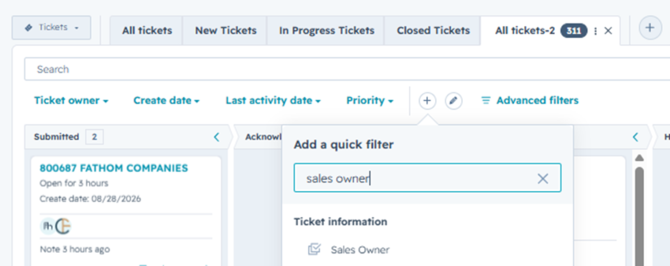
Screenshot: Add Sales Owner as the filter. Do not use Ticket Owner for this view.
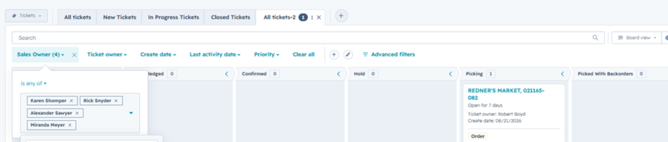
Screenshot: Select yourself and the salespeople you support, then save and rename the view.
|
Important Filter using Sales Owner, not Ticket Owner. Filtering by Ticket Owner will not return the intended results. |
View Tracking Information
Tracking information becomes available one the ticket reaches either Shipped Complete or Shipped with Backorders stage.
Tracking information is not expected to display before the ticket reaches one of these stages.
From the Ticket View
-
Open the teal Ticket Name.
-
In the left panel, scroll to Shipping Details.
-
Locate Carrier and Tracking.
The Shipping Details section may also include information such as pallet count, pallet dimensions, and freight cost.
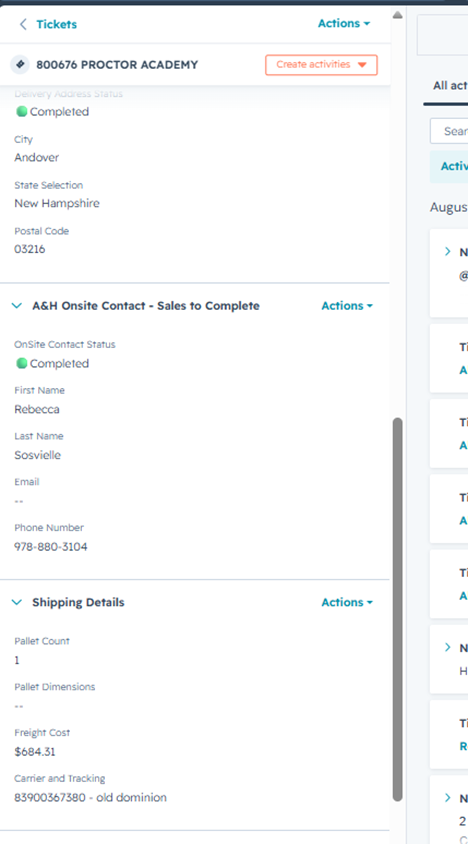
Screenshot: In the Ticket View, scroll down the left panel to Shipping Details to find Carrier and Tracking.
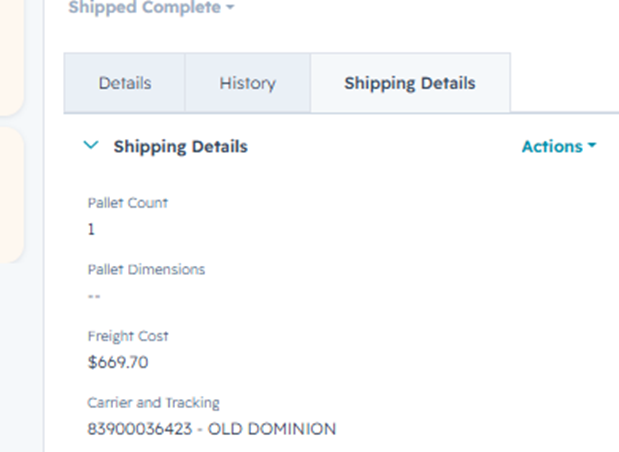
Screenshot: Carrier and Tracking appears inside Shipping Details once shipment information is available.
From the Help Desk
-
Open Help Desk.
-
Choose the correct warehouse.
-
Select A&H Closed.
-
Click the teal Ticket Name.
-
Locate the tracking information under Shipping Details.
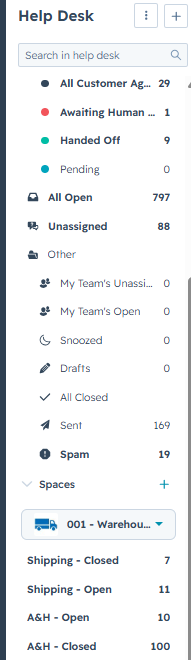
Screenshot: In Help Desk, choose the correct warehouse and select A&H - Closed before opening the ticket.
Key A&H Rules
- Use A&H for qualifying tabletop and smallwares opening orders.
- Do not use A&H for equipment or equipment delivery.
- Submit an A&H request only when instructed by the salesperson.
- Prefer creating the ticket from the Company record.
- Verify the Company's account number against Prelude.
- Associate the correct Company record with every ticket.
- Select the actual Sales Owner, not the support person.
- Submit requests at least two weeks before delivery whenever possible.
- Enter multiple Sales Orders as 12345,12346,12347 with no spaces.
- Leave new tickets in Submitted.
- Do not manually advance the ticket.
- After submission, communicate changes using a Note.
- @ mention the current Ticket Owner when their attention is required.
- Do not use the ticket's Email button for A&H updates.
- Use Sales Owner, not Ticket Owner, when building monitoring views.
- Tracking information appears under Shipping Details once the ticket reaches a shipped stage.