
Add a Contact to a Company
Here are the fields you need to fill out when adding a contact to a company (customer) in HubSpot.
Step 1 — Enter the contact's information.
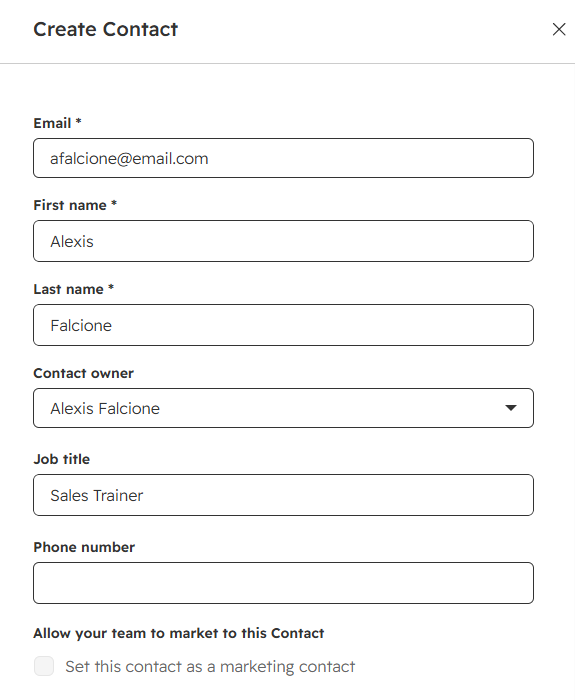
Enter the following information:
- Insert contact's email.
- Insert contact's first name.
- Insert contact's last name.
- Insert contact's job title (Chef, GM, Owner, etc).
- Insert contact's phone number.
Step 2 — Associate the customer with the contact.
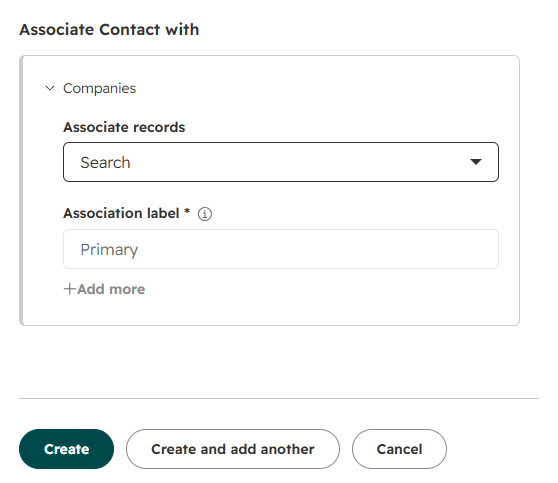
Make sure your customer is associated with the contact by using the dropdown arrow. This should pre-populate if creating the contact within the company page.
Step 3 — Create the contact.
Click Create to create the new contact.
If you have multiple contacts to add, click Create and add another.
Click Cancel to cancel the creation.