Step 1 — Open SETVI Engage Go to https://engage.setvi.com/.
Step 2 — Sign in
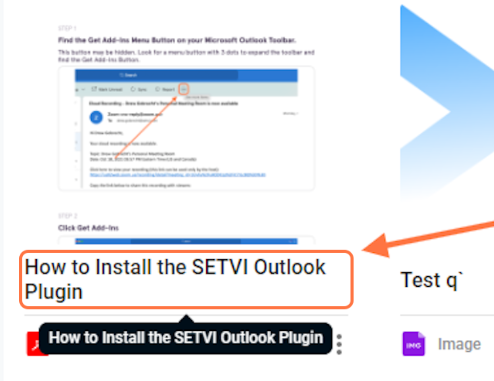
Step 3 — Open the PDF resource
Locate and select the PDF resource in which you want to create a bookmark.
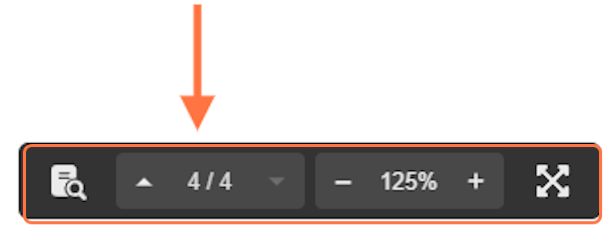
Step 4 — Find the page
Use the PDF navigation controls to move to the page you want to bookmark.
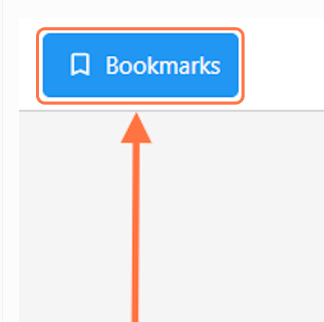
Step 5 — Open Bookmarks
Select Bookmarks.
Step 6 — Name the bookmark
Enter a descriptive name for the bookmark.
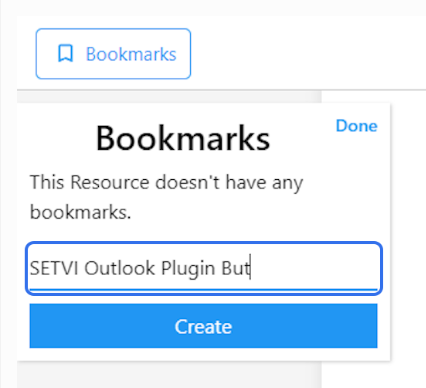
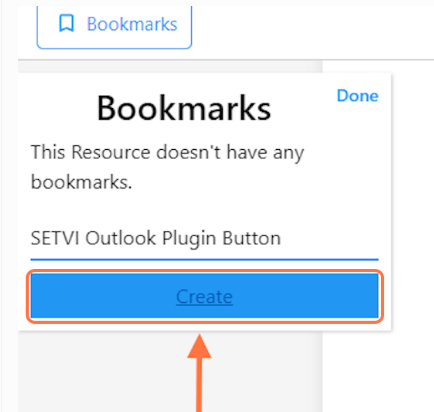
Step 7 — Create the bookmark
Select Create.
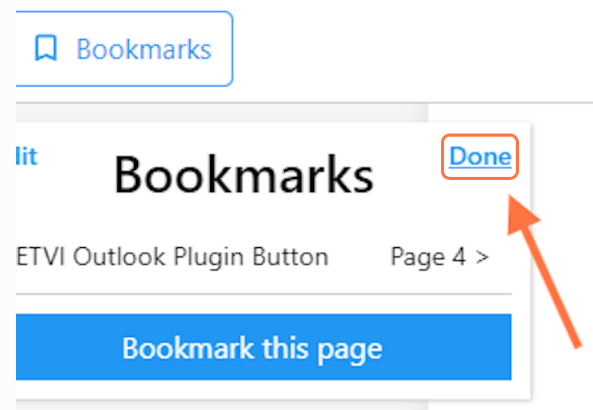
Step 8 — Close the Bookmarks panel
Select Done when you have finished creating bookmarks.
Return to a Bookmarked Page
Step 9 — Reopen Bookmarks
When you return to the PDF resource, select Bookmarks.

Step 10 — Select the saved bookmark
Select the name of the bookmark you want to open.
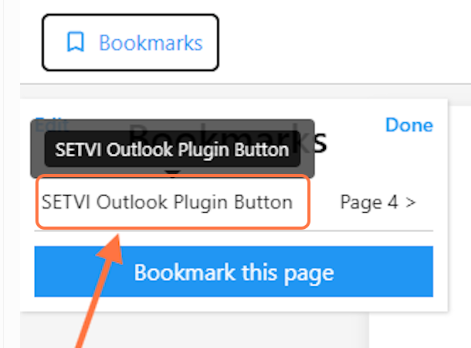
Step 11 — View the bookmarked page
SETVI takes you directly to the page associated with the selected bookmark.
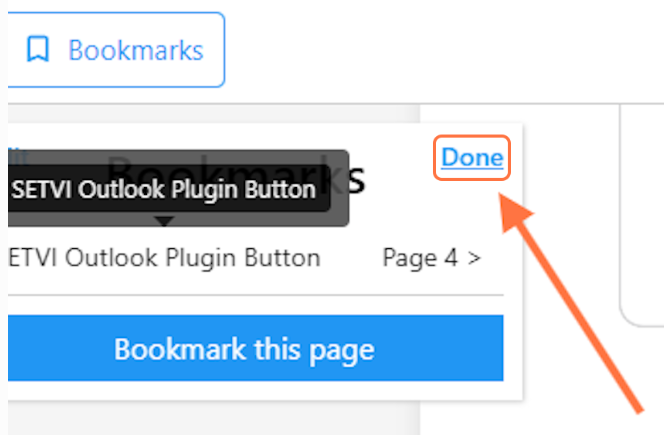
Step 12 — Close the Bookmarks panel
Select Done when you are finished.