
Get the Opening Order Check-In Sheet
Step 1 — Request the Check-In Sheet.
Provide a minimum of 24 hours' notice to Sales Support and create a calendar invite for the day and time you want the report in hand.
If you request the report from Sales Ops/Pricing, provide 48 hours' notice.
You can also pull the report yourself using the instructions below.
Pull the Report Yourself
Step 2 — Navigate to the Salesperson Menu.
Navigate to the Salesperson Menu.
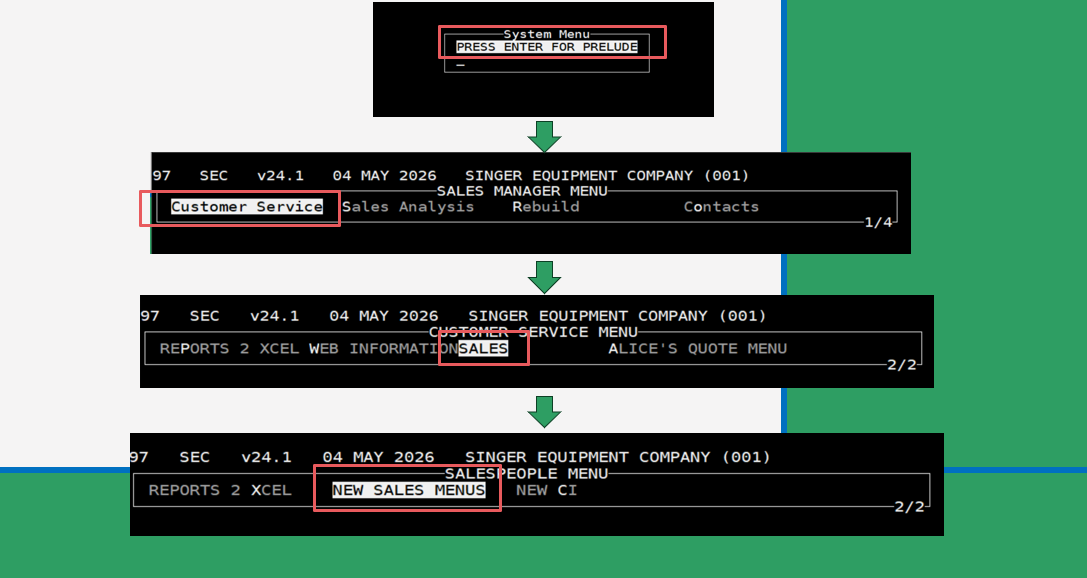
Step 3 — Open the AH Opening Order Check-In Sheet.
From the Salesperson Menu, select:
- Daily Check
- AH Opening Order Check-In Sheet
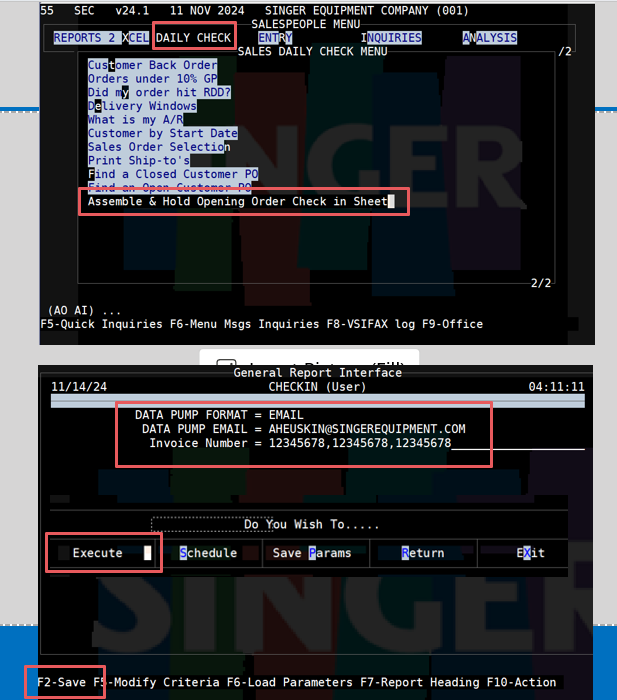
Step 4 — Fill in the report details.
Fill in the following details:
- Format: Email
- Invoice #: Separate invoice numbers with commas
Press F2, then Execute.
Export and Save the Report
Step 5 — Print the report to FILEDUMP.
Type P for Print.
Fill in the printing details.
Type FILEDUMP, then press Enter.
Press F2.
The Check-In Sheet will be emailed. Be sure to save it.
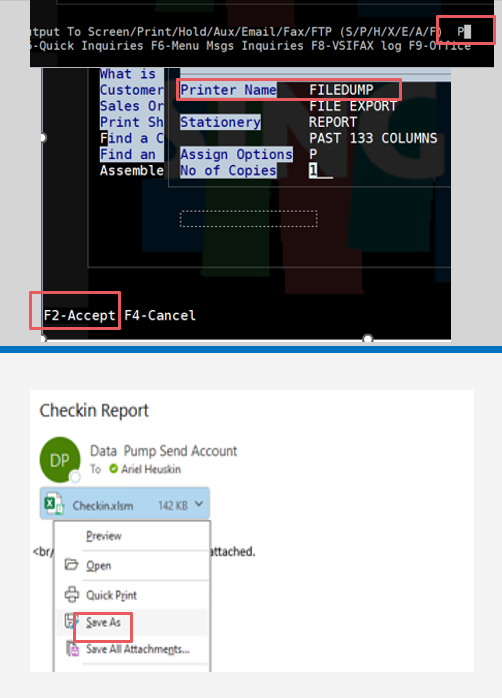
Step 6 — Open the Check-In Sheet in Excel.
Open the file with Excel on your computer.
Complete the Check-In Sheet
The Check-In Sheet contains the following tabs:
- Cover
- SCANNED
- BACKORDERED
- MISSING
- DAMAGED
- RETURN
- NOBOORSHIP
- RAW DATA
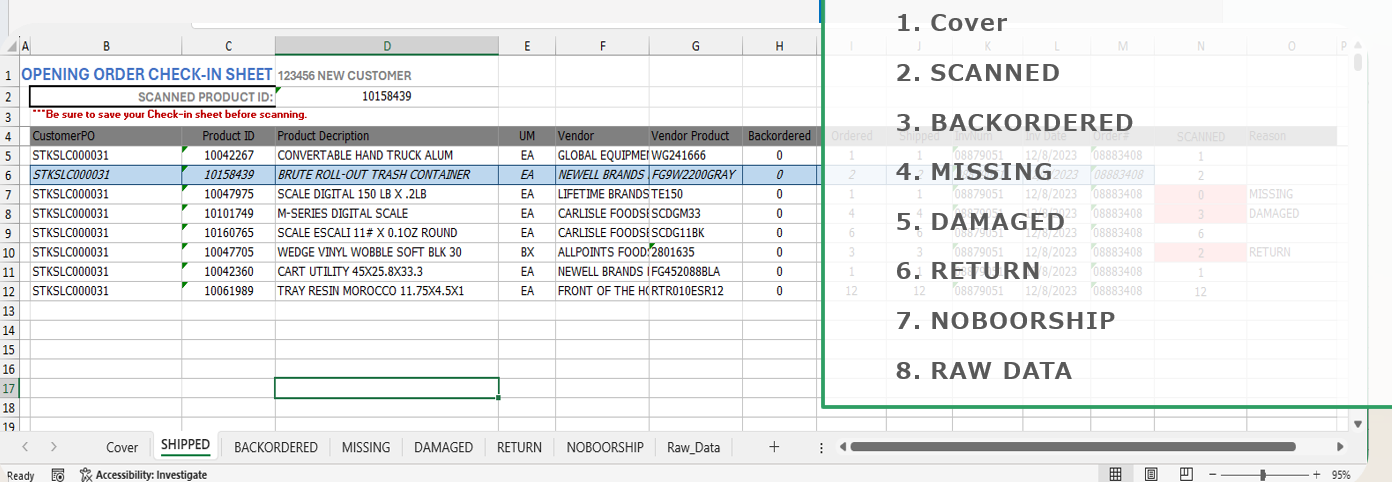
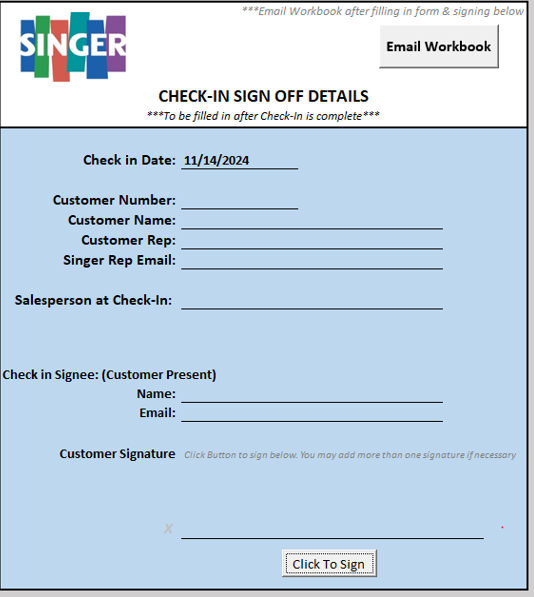
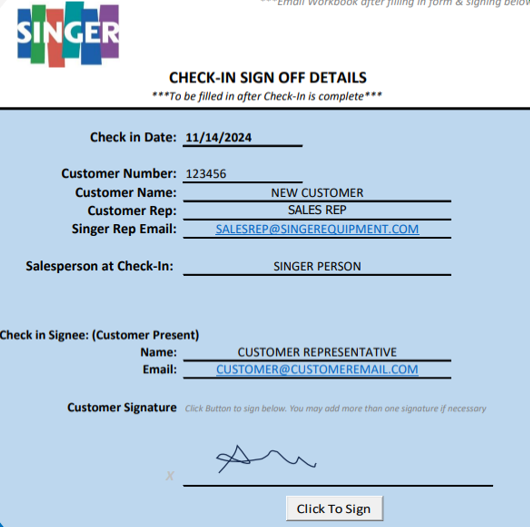
Step 7 — Complete the Cover tab.
Fill in the Check-In Details on the Cover tab.
Sign the Check-In Sheet
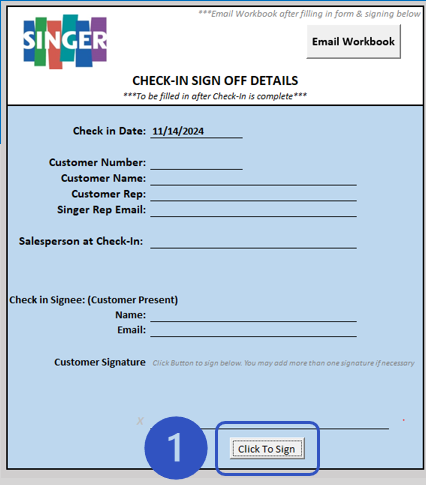
Step 8 — Click to sign.
Click Click to Sign.
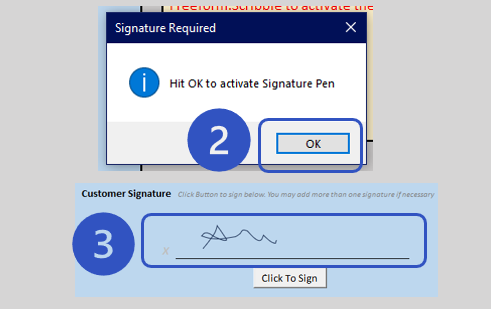
Step 9 — Confirm the signature function.
Click OK.
Step 10 — Draw your signature.
Draw your signature.
Email the Completed Check-In Sheet
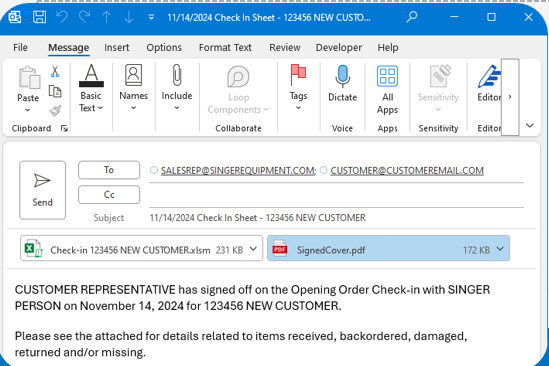
Step 11 — Email the workbook.
Use the Email Workbook function.
The email is auto drafted with the Cover tab details and includes:
- Copy of Check-In
- PDF Copy of Cover
Final Tips & Takeaways
- Provide 24 hours' notice to Sales Support if they are pulling the report for you.
- Separate invoice numbers with commas in Prelude.
- Save First – Then Open.
- Do not use browser based Excel.