
How Do I Create or Reset My AQ Password?
You can change your password for security reasons or reset it if you forget it.
Your AQ Account password is used to access many AQ products, including:
- CPQ
- SKU
- Insight
Note: This does not impact AQ GO. AQ GO will continue to use your old password.
Change or Reset Your Password
Step 1 — Open AQ.
Open your AQ.
Step 2 — Select the password-reset option.
On the login screen, select Don’t remember your password?
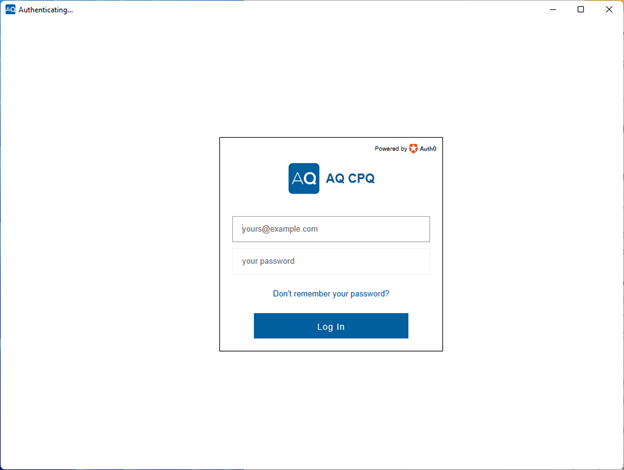
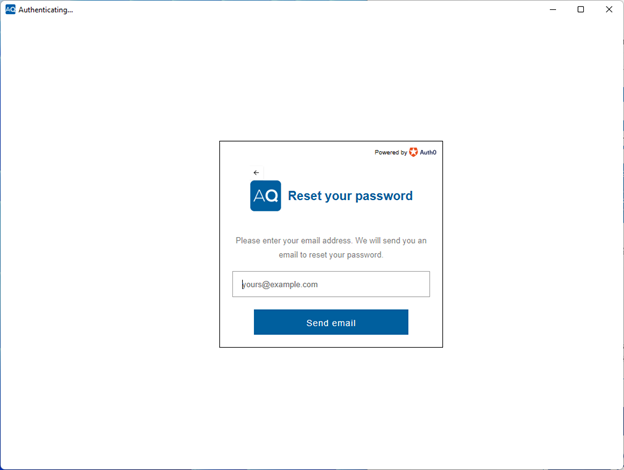
Step 3 — Enter your email address.
Enter your email address.
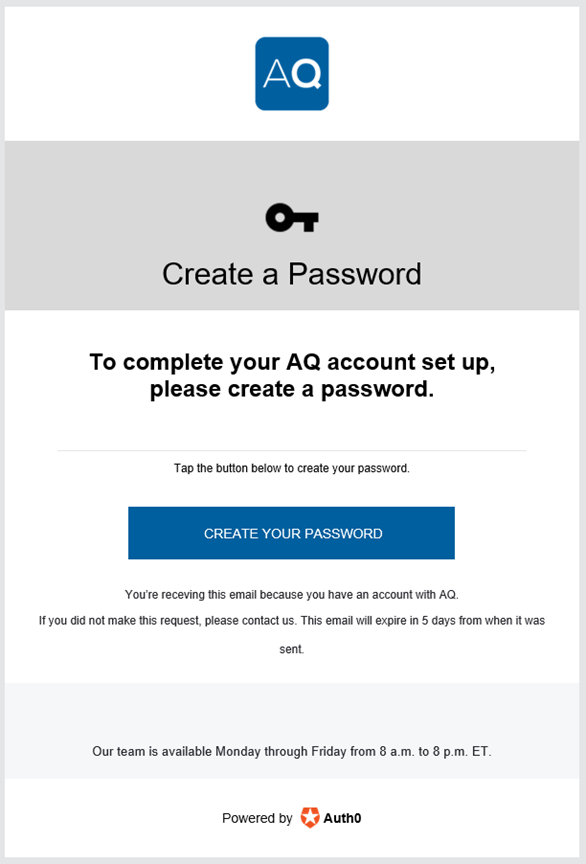
Step 4 — Open the password email.
From the Create a Password email, click CREATE YOUR PASSWORD.
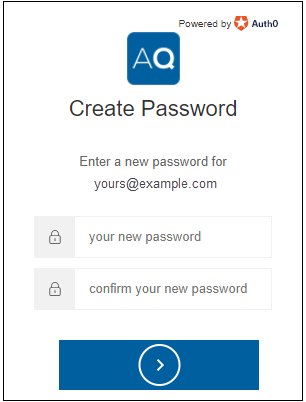
Step 5 — Enter your new password.
Enter your new password, then select Next.
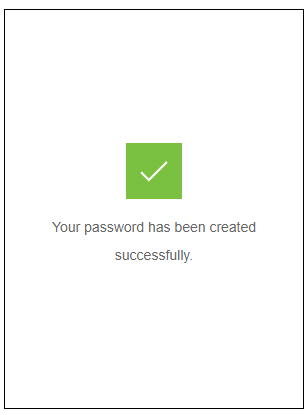
Step 6 — Confirm completion.
You’re done.
Updating a Password from the AQ App
Note: At this time, passwords cannot be updated from within the AQ app.
To update the password, the user must exit the program using the Log Out button located on the Quick Access Toolbar.

Watch the Video:
AQ Basic Training Chapter 1 — Logging In and Basic Navigation