Expediting an Order
Occasionally, there will be a need to find the status of a Special order or the expected availability of a stock item that is currently on backorder.
Step by Step Process
Step 1 — Go to Sales Order Inquiry (/SOI).
Key the customer’s name or account number, press enter, enter, enter. All open orders will be displayed.
Step 2 — Select the Sales Order number that is to be expedited.
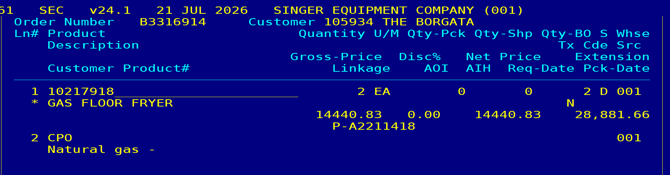
Using the up or down arrow, select the Sales Order number that is to be expedited, press F5 to review.
Step 3 — Find the Singer purchase order under linkage.
The Singer purchase order will be found under linkage (in this example A2211418).
While the cursor is on the item code, go to Inventory Inquiry (/II.SEC), enter, enter.
Vendor phone number is found on this page. For further vendor information, type /VI.SEC and key in the vendor number, press F5 to view any notes provided.
Step 4 — Escape, escape, escape back to Sales Order Display.
Call the vendor, state your name, that you are with Singer Equipment, and you’d like to check the status of a purchase order, and ask the following questions:
- Has the order shipped?
- If it shipped, when?
- Did it ship complete? If there are back-ordered items, what is their ETA?
- Can they provide the carrier/tracking information?
- Where did it ship from?
- What is the typical travel time from point A to point B?
- If it has not shipped, is there a tentative ship date?
- Name of the person giving this information
Step 5 — Enter notes into Prelude.
While in Sales Order Display, press F10, arrow over (or press X) for Expediting.
Press enter, then enter again on Expedite an Order from a Factory.
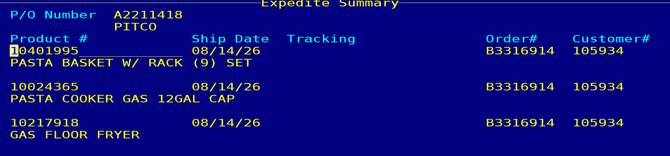
Press F6 to view items on the Purchase Order.
To add a new note, press F6 to select all items, or F5 to choose items. Press F2 to add notes. Type in the dates and shipping information, along with notes from the vendor.
F2 to save.
Existing notes will be listed. Press F5 to view, F5 again for more detail.