
Insert Your Meeting Link into an Email
Step 1 — Create an email
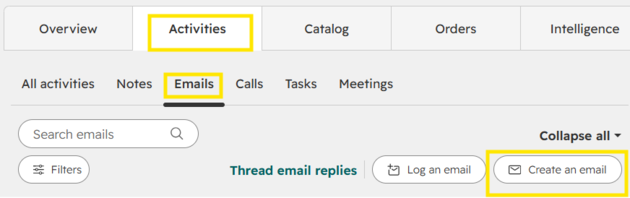
On a company record, go to Activities, Email and click Create an Email.
Step 2 — Select Meetings.
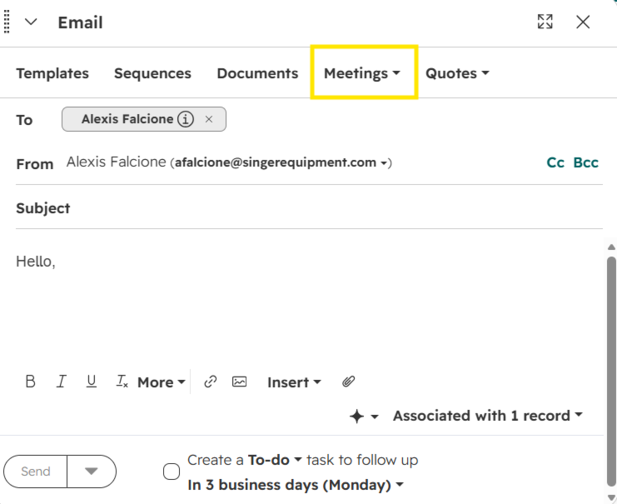
In the email editor, select Meetings.
Step 3 — Insert your meeting option.
Choose the scheduling link or proposed meeting times you want to insert into the email.
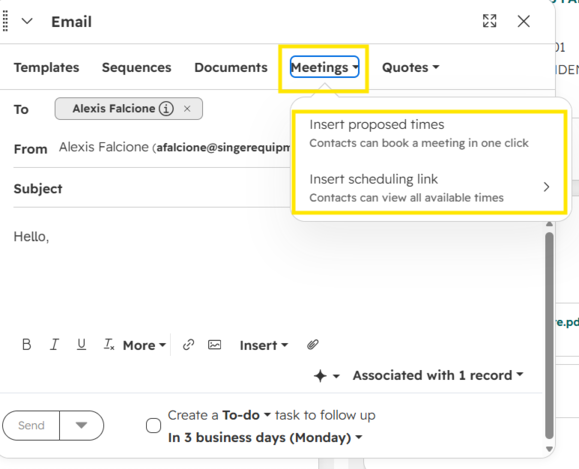
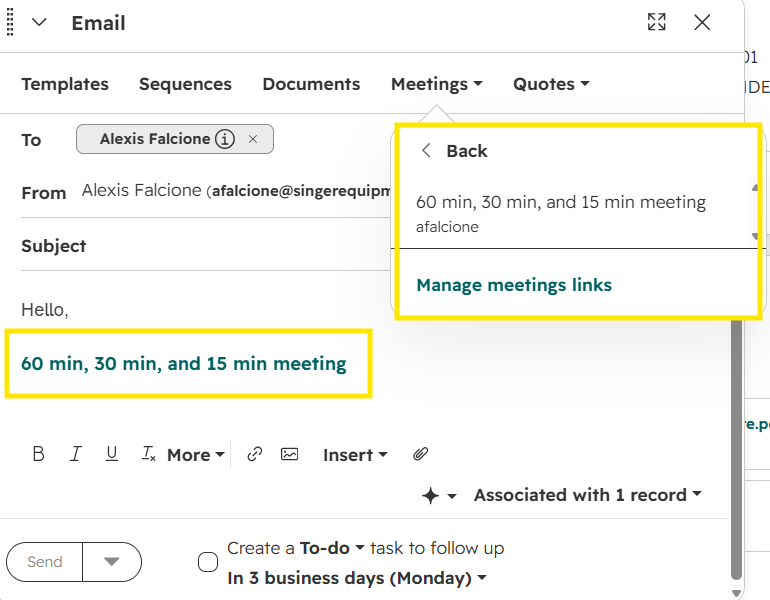
Scheduling Link: Drops a 60 min, 30 min, and 15 min meeting scheduling link within your email based on your calendar availability so your recipient can choose the duration and time.
Proposed Meeting Time: You choose meeting duration and specific dates and times for your recipient to choose from.
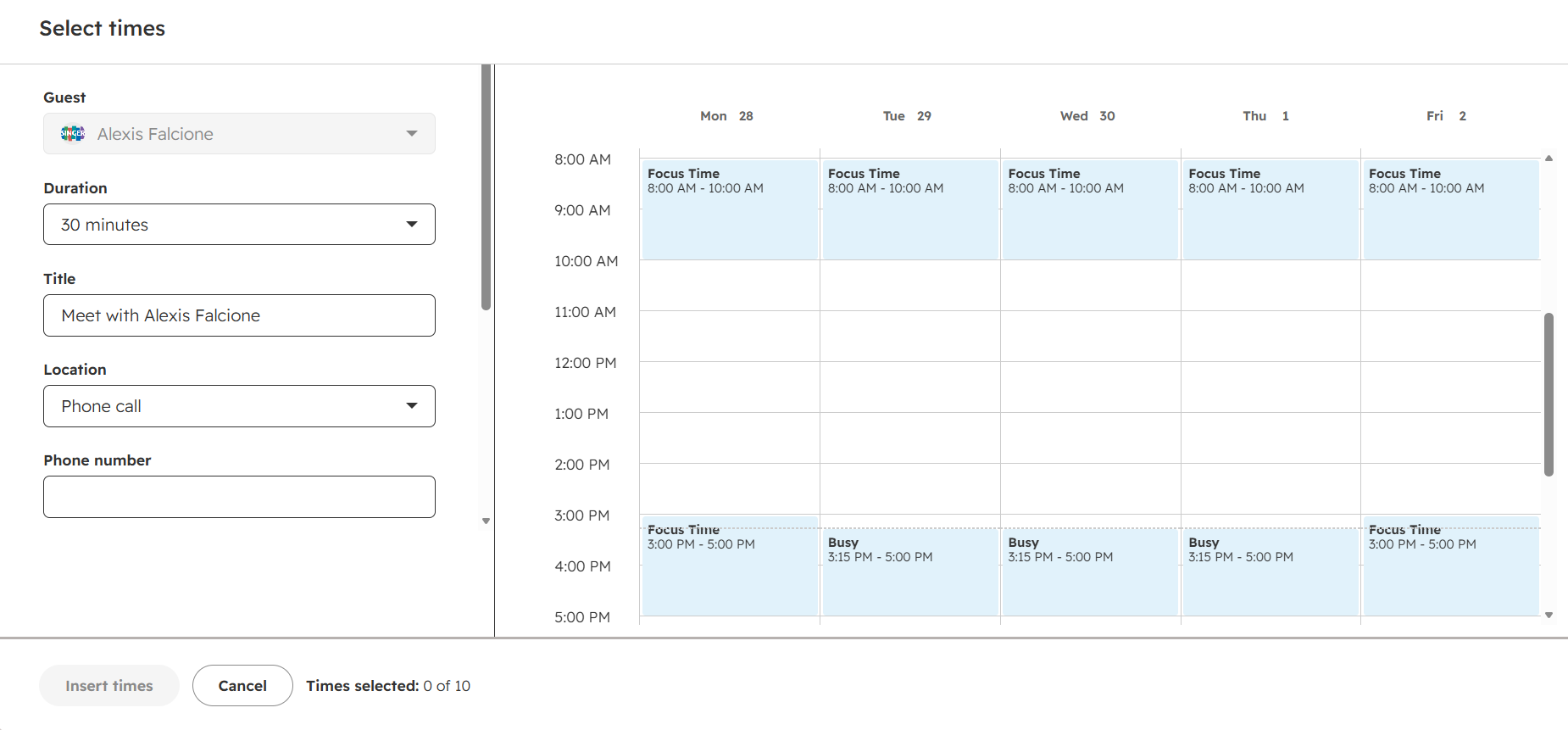
Step 4 — Complete and send the email.
Finish your email and select Send.
Note: A connected calendar is required for a HubSpot meeting link that shows availability and accepts online or automatic bookings.