
Within a project's freight tab, AQ users can calculate freight costs automatically through a variety of carriers.
To obtain a freight quote, each item on the project must have four values defined:
- Ship To address (zip code)
- Ship From address (zip code)
- Weight
- Freight Class
AutoQuotes does provide one free freight account listed under “Kuehne+Nagel LTL eCommerce” that will produce a generic estimate of freight cost. However, this account should be used with caution since the calculations are only estimates.
Note: All carriers require users to have an established account before providing freight calculations. Users must log into their carrier within AQ prior to utilizing this service.
USE OUR COMPANY LOGIN CREDENTIALS FOR Kuehne+Nagel OR WHICHEVER LOGISITCS COMPANY YOUR DIVISION USES!
Note: Login credentials on AQ project Freight tabs might be different than the login credentials for the logistic companies’ websites.
Obtaining a Freight Quote- From within a project, click on the Freight tab.

- Select your preferred carrier from the drop-down list located in the top ribbon of the Freight window. The drop-down list is located directly left of the UPS Credentials button.
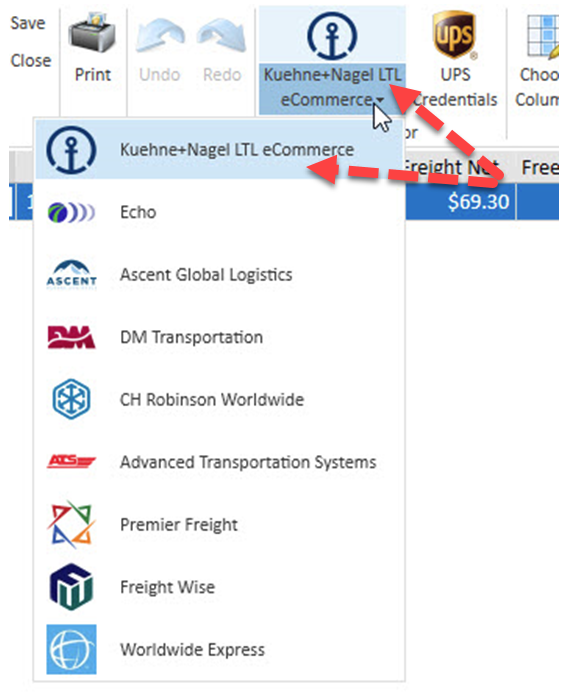
Note: Most Singer Divisions use Kuehne+Nagel but be sure to confirm which logistics company your division uses & get your division's login credentials.
- Log into the freight carrier using the account credentials provided by your carrier to your division. The Log In button is inside of the Freight Estimator, located on the right side of the bottom panel.
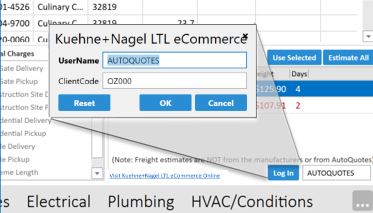
- To obtain freight estimates one manufacturer at a time, click on a row within the Mfr list. a. Select any Accessorial Charges required for the shipment. b. Here you can select any carrier offered for that manufacturer. Click “Use Selected” to use the selected carrier for that manufacturer in your estimate, or double-click the carrier.
- If you’d rather obtain freight estimates for all manufacturers at once, instead click “Estimate All,” on the right side of the freight estimator.
Note: This will automatically select the least expensive carrier for each manufacturer. You cannot select carriers using this method.
Note: Weights for associated items, e.g., Same Mfr, Ship To, Ship From & Freight Class, are combined.
