
Most of you are aware that reps & manufacturers can send you AQ quotes, either by email or directly in AQ. It appears that many of you are not utilizing best practices in dealing with them.
Best PracticeNever overwrite/change vendor quotes & send them to customers. ALWAYS maintain the integrity of your inbound quote like you would do if it was a fax or piece of paper—you wouldn’t redact & overwrite it.
Firstly, common sense dictates that you keep a record of what the vendor quoted you. You can make folders for inbound quotes.
Secondly, a quote that didn’t originate from you has attributes & history that isn’t yours under the hood.
There are 2 proper ways to proceed.
1. Make a Copy of the Quote, Then Revise & Send the CopyNever revise and send the original.
From the project listing, highlight the project you want to copy. Then right mouse-click over the project for the menu and select “Create Duplicate Project” as illustrated below.
The project will be listed on top as “COPY OF” and the project name.

In AutoQuotes you can have multiple projects open at the same time. To copy one or more items from one project to another is easy using the Copy and Paste functions.
a) Select the Items
Select the item or items you want to copy. This can be done by simply clicking on any line item.
If the item has accessories, you do not need to select all the accessory lines and just the base line item.
If you have multiple items, use the CTRL key to select or use the Shift key to select a group of items. Using CTRL+A selects ALL ITEMS on the spreadsheet.
b) Copy the Items
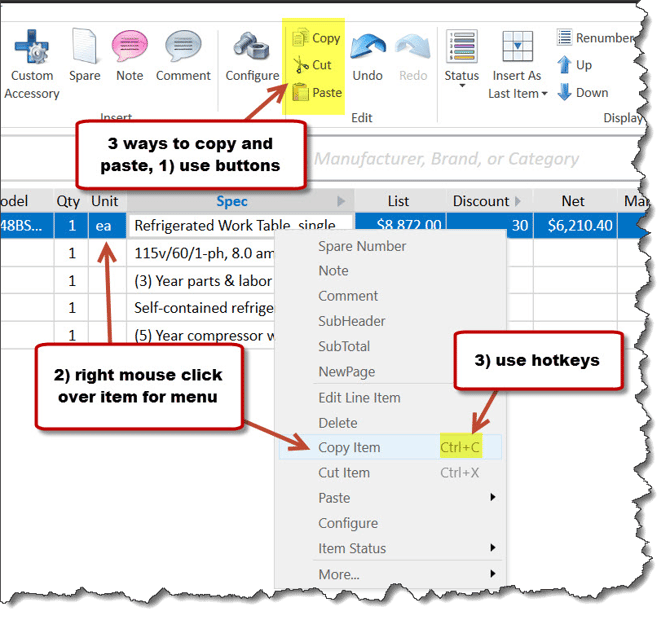
To copy items, you have 3 options:
- Right mouse-click for menu.
- Click on the COPY button on the toolbar on top.
- Use the hotkey CTRL+C.
3) Paste the Items
To paste items, go into the project you need the items in. Again, you have 3 options:
- Right mouse-click for menu.
- Click on the PASTE button on the toolbar on top.
- Use the hotkey CTRL+V.
If you haven’t been doing it this way, please try to moving forward.