Step 1 — Open SETVI Engage Go to https://engage.setvi.com/.
Step 2 — Sign in
Step 3 — Search for a resource
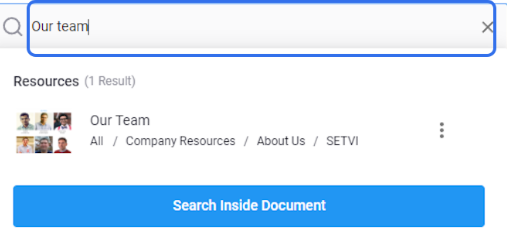
Select the search bar at the top of the screen and enter the name or topic you want to find.
SETVI displays resources that match your search. If you do not find the resource you need, try entering alternative search terms.
To search for the term within the text of PDF and Word documents, select Search Inside Document.
Step 4 — Open the resource or view additional options
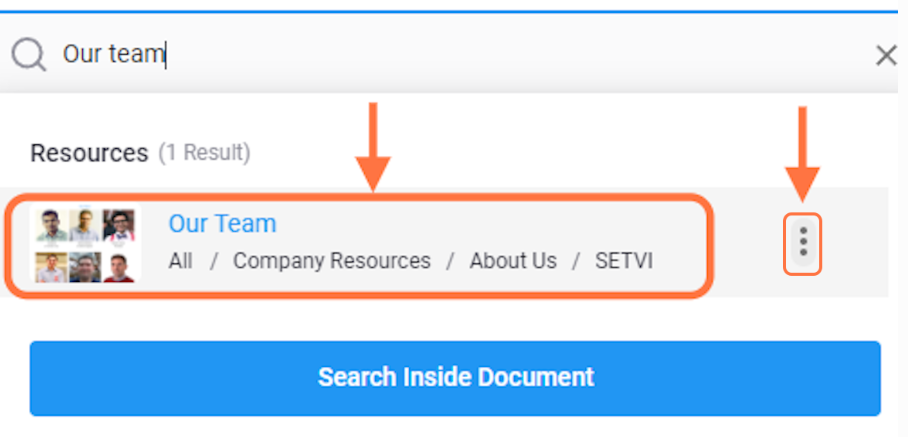
Select the resource name to open a preview.
To see the actions available for the resource, select the three dots to the right of its name.
Step 5 — Select a resource action
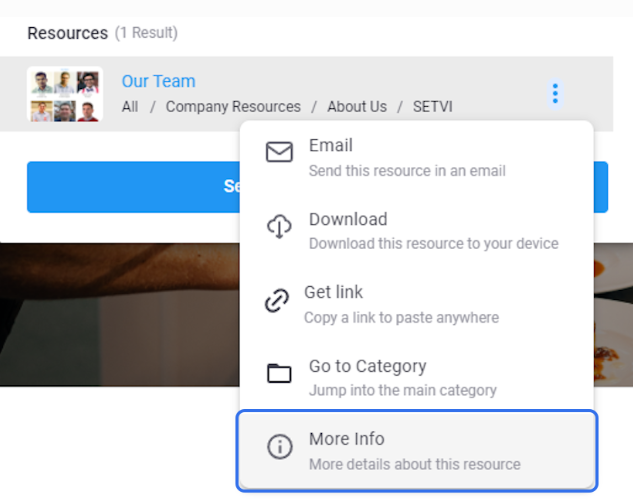
The available actions include:
- Email — Send the resource in an email.
- Download — Download the resource to your device.
- Get link — Copy a link to the resource.
- Go to Category — Open the resource’s main category.
- More Info — View additional information about the resource.
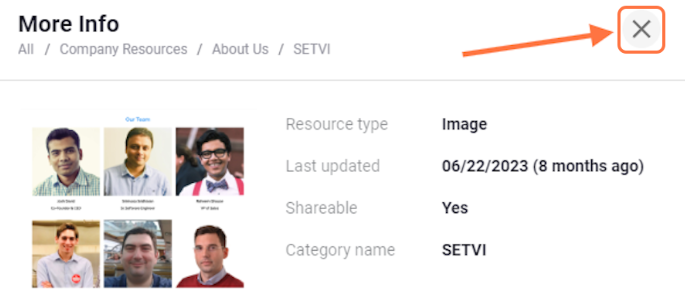
Step 6 — View the resource information
Select More Info to view details about the resource, including:
- Resource type
- Last updated date
- Whether the resource can be shared
- Category name
Select the X in the upper-right corner when you are finished.