Overview
After a quote has been prepared and reviewed, it can be shared with the customer as part of the sales process.
Setvi allows you to share quotes directly with customers or internally with collaborators, Sales Support, or managers.
Before Sharing a Quote
Confirm that:
- The correct customer is selected.
- Product information is accurate.
- Quantities are correct.
- Pricing has been reviewed.
- All requested products are included.
How to Share a Quote
Step 1 — Select Share.
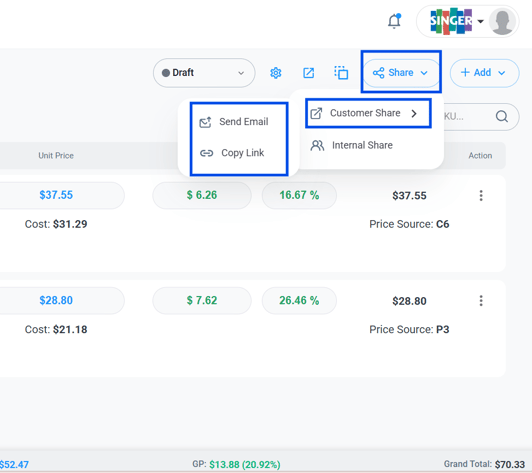
Open the quote and click Share in the upper-right corner.
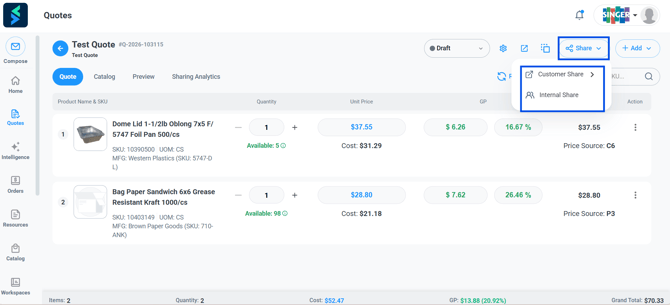
Step 2 — Choose the sharing option.
You can choose between:
- Customer Share: Share the quote directly with the customer.
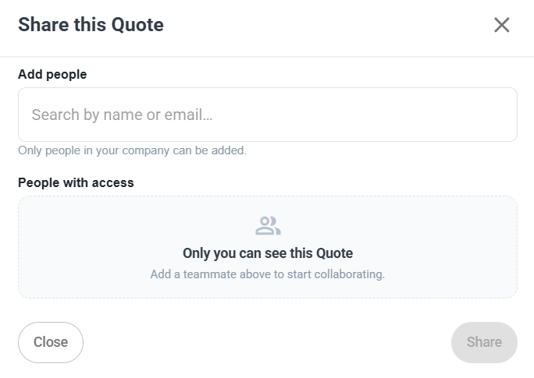
- Internal Share: Share with collaborators, Sales Support, or managers (see below).
If Customer Share Is Grayed Out
The Customer Share option may be grayed out if customer information is incomplete.
Step 3 — Open Quote Settings.
Click the wheel icon to access the quote settings and update the missing customer information.
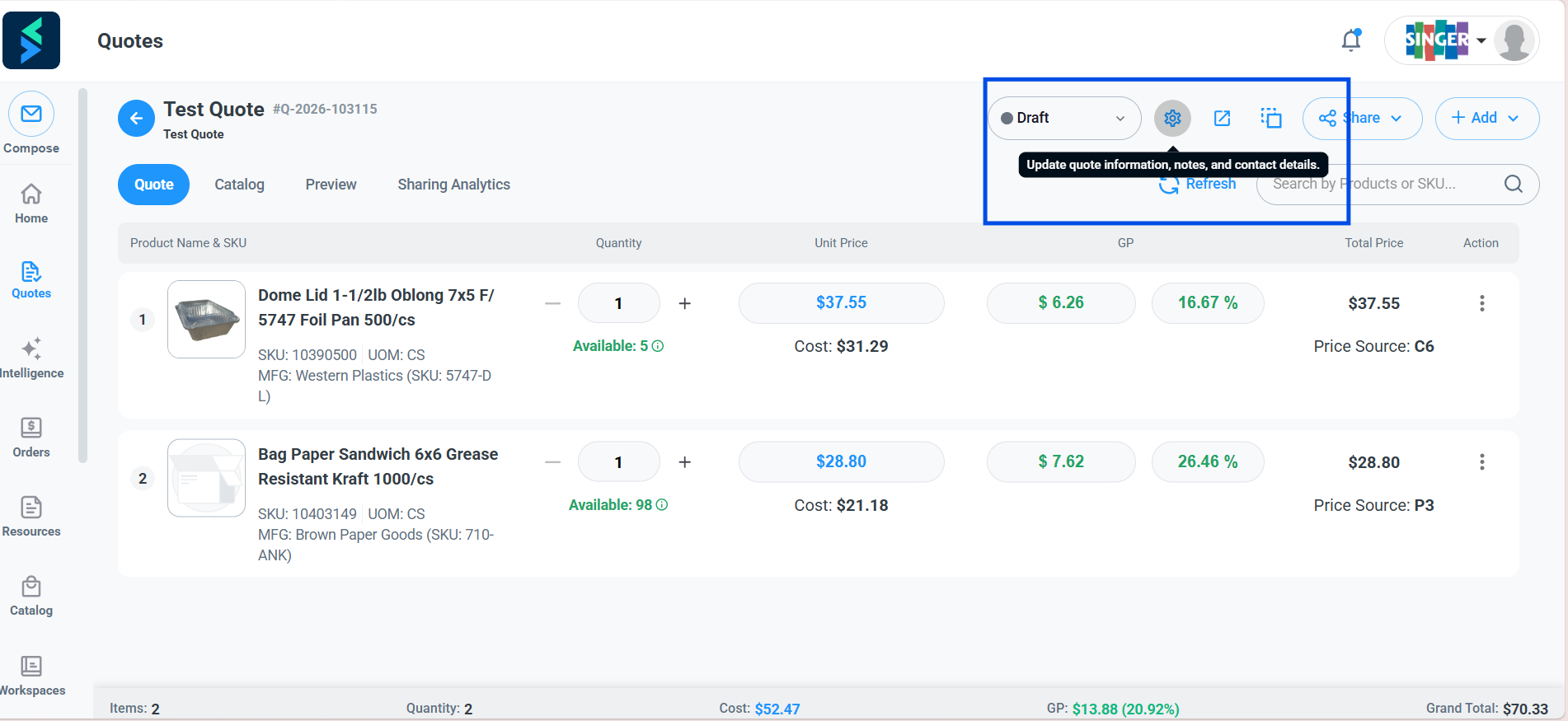
Step 4 — Update the customer information.
Enter the following information:
- Customer address
- Phone number
- Any notes
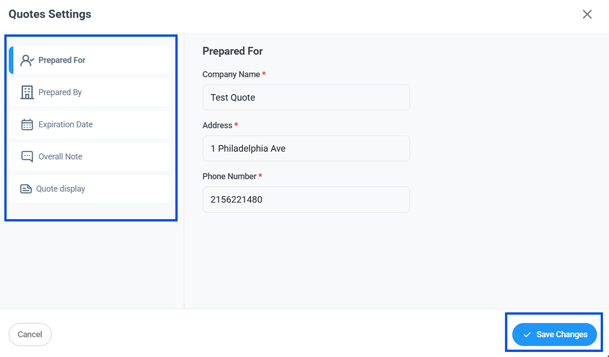
Step 5 — Save the changes.
Click Save Changes.
Step 6 — Return to Customer Share.
Click Share again and select Customer Share.
Send the Quote to the Customer
Once Customer Share is available, you have two options for sending the quote.
Option 1: Send an Email Directly from Setvi
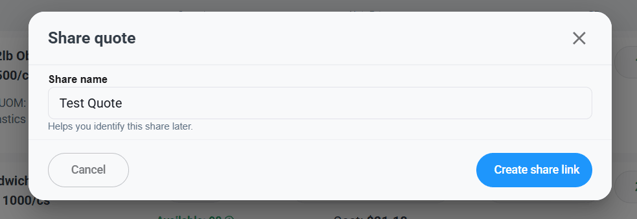
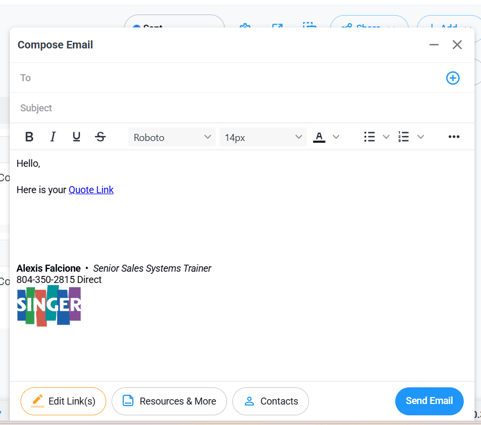
Step 7 — Send the quote through Setvi.
Use the email option within Setvi to send the customer a link to the quote.
Option 2: Share the Quote Through Outlook
Step 8 — Copy the quote link.
Click Copy Link to copy the quote link.
Step 9 — Send the link through Outlook.
Open Outlook, paste the copied quote link into an email, and send it to the customer.