
Price Adjustments
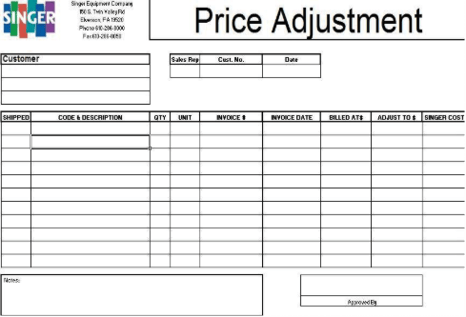
Price Adjustments are used to correct the Sell Price of an item on an order that has been invoiced. Once the form has been filled out with all of the required information it should be sent to the Salesperson's Collector.
Price adjustments cannot be processed before the order has been invoiced.
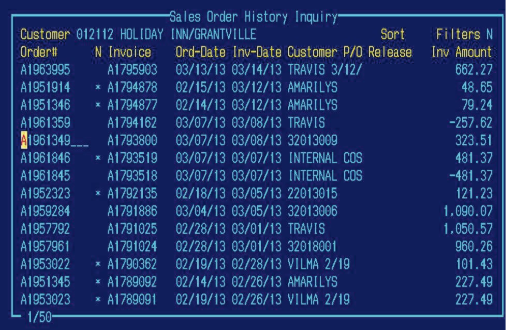
Step 1 — Go to /SOHI.
All the required information can be found in the customer's Sales Order History Inquiry or SOHI screen.
Step 2 — List any pertinent information in the Notes Box.
Be sure to list any pertinent information in the Notes Box, it will help to ensure that the adjustment will be processed in a timely manner.
Step 3 — Open the Sales Order and identify the item.
Once the flashing cursor is on the Sales Order you are working with, hit the F5 key to open the order. Then identify the item having the price adjusted and the price that was charged.
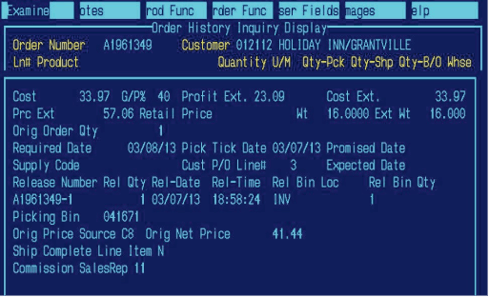
Step 4 — Examine the item pricing.
Once identified, place your cursor on it and hit the F10. A line of options will appear across the top of the page. With the flashing cursor on the word "Examine" hit enter.
This will open a screen that will have the net cost, profit dollars and sale price for that item.
Step 5 — Fill out form and e-mail to credit.
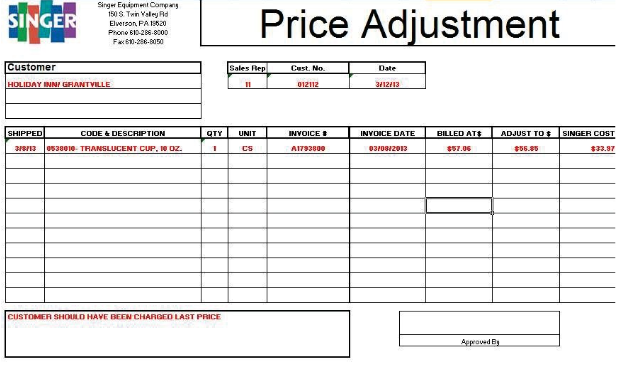
Internal Price Adjustments
Internal Price Adjustments are done to correct the Net Price of an item. Speak with the Collector for the account to determine how they would like you to proceed.
The five documented steps and the separate direction for Internal Price Adjustments are preserved from the source.