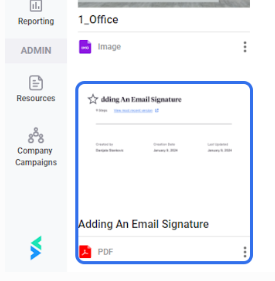
Step 1 — Open SETVI Engage Go to https://engage.setvi.com/.
Step 2 — Sign in
Step 3 — Open Workspaces
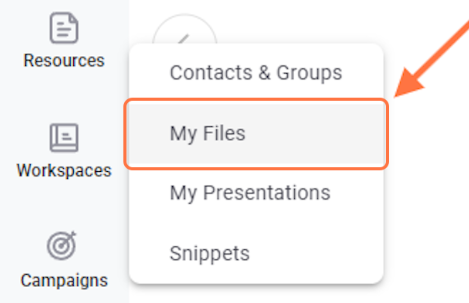
Step 4 — Open My Files
From the Workspaces menu, select My Files.
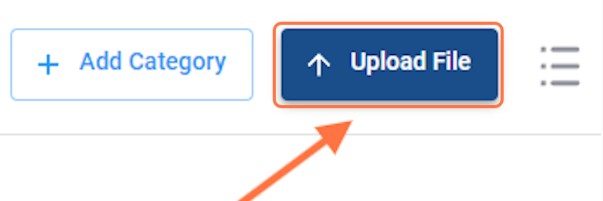
Step 5 — Start the upload
Select Upload File.
Step 6 — Add the file
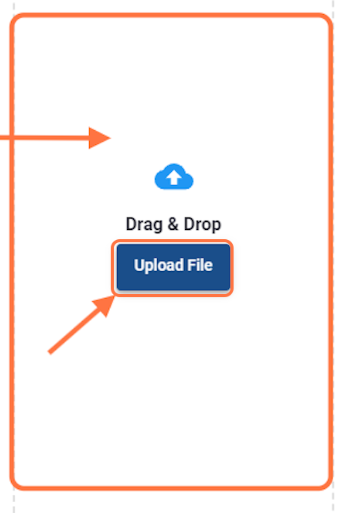
Use either of these methods:
- Drag the file from your computer into the Drag & Drop area.
- Select Upload File, and then locate and select the file on your computer.
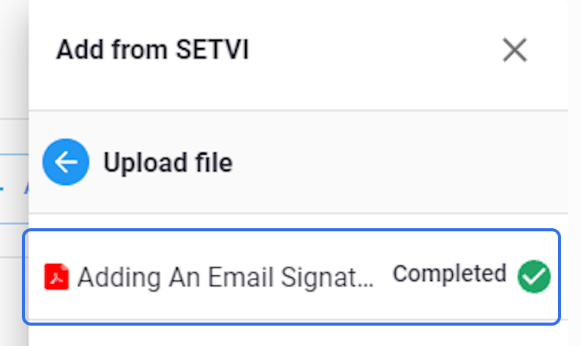
Step 7 — Confirm that the upload is complete
Wait until the file displays a green checkmark and a status of Completed.
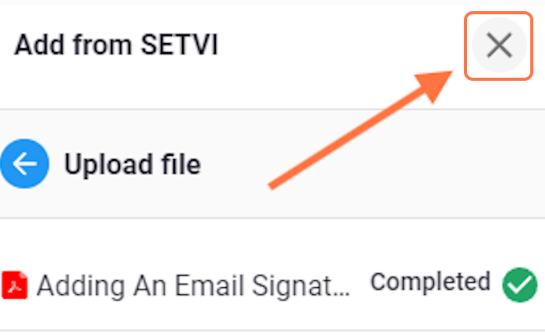
Step 8 — Close the upload panel
Select the X in the upper-right corner when you have finished uploading files.
Step 9 — Locate the uploaded file
The uploaded file now appears in My Files.