
Star Commands
Star command is a way to include items in a sales order, return entry or quote; when items are not set up in the system. The most common star commands are; *close out, and *freight.
*Close Out
The *close out command is used when you are keying items that are not in a pickable bin. You are skipping the pick ticket process so all *close out orders must be keyed separately from a regular stock order. These orders will be keyed in as a "06" order type (confirmation order). Print the invoice instead of a pick ticket.
Step 1 — In the Sales Order header box change the order type to 06 (Confirmation Order.)
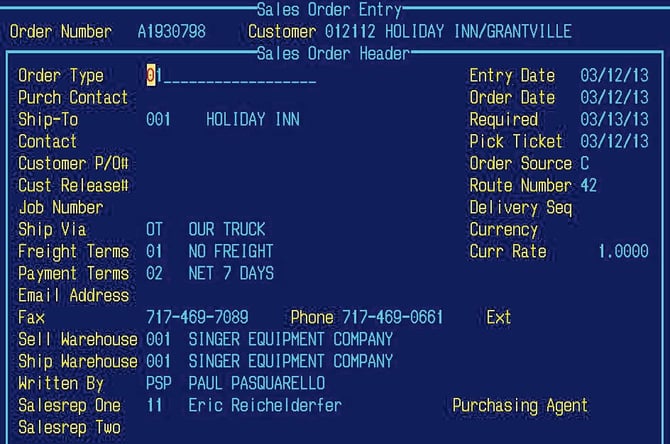
*Step 2 — Key in close out.
You must have a space between the words "close" and "out".
A product description box will open. Enter as much of the description in this box as you are able. Include the Mfg. item number whenever possible.
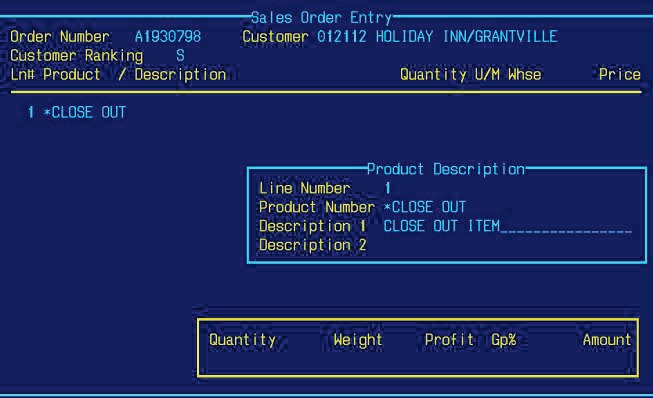
Step 3 — Enter the net cost of the item.
A cost prompt will open up. Enter the net cost of the item.

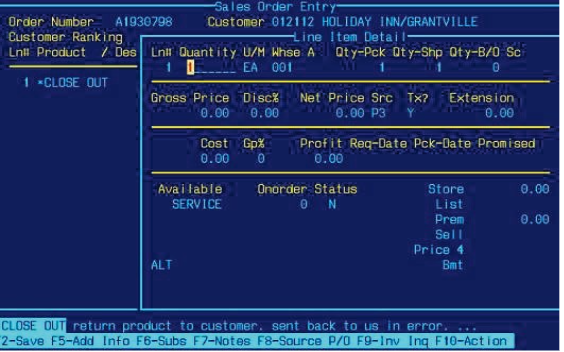
Step 4 — Enter the quantity and sell price.
Once a cost is entered you will go to the Line item detail. Enter the quantity. Your cursor will drop to the sell price. Enter the sell price. F2 to save the screen.
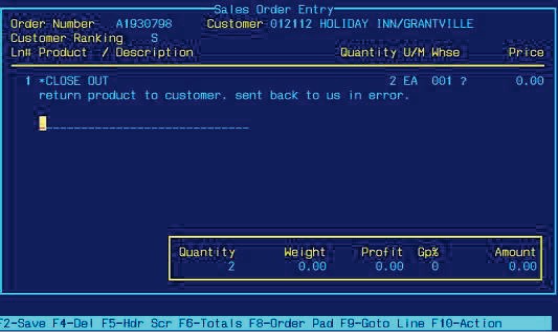
Step 5 — Add any additional comment lines.
Add any additional comment lines that did not fit in the product description box. F2 to save the screen.
(Notice the options are different due to the "06" order type.)
Step 6 — Select Complete.
When the screen comes up as "Do you wish to" Select Complete.

Step 7 — Complete and release the order for invoicing.
The Sales Order Completion box will appear. F2 to save.
Another message box will open up, "Are you ready to release This Order For Invoicing”?
Press F2 for yes.
Go to invoice print (/IP) and print the invoice to the warehouse. Ask warehouse what printer to print the invoice to.
001, email John Morgan or Jeanette Bubbenmoyer
008, email-shipping@singerequipment.com

The source documents Steps 1–6 in sequence, including the required space in *close out, the product description, cost, quantity, sell price, comment lines, and Complete selection. Step 7 provides the final invoicing instructions and warehouse contacts.