
Find and Replace Feature
AQ offers the ability to take an old or unlinked item in your project and replace it with the current version of that Catalog item. Below are the steps required to use this feature.
- Right-click on the Line Item and select Find Model in Catalog (Replace).

- The feature will find the appropriate item(s) based on the selected line item in your project and display those items in the Catalog.
- After you choose the appropriate replacement item from the Catalog, it will replace the old or unlinked item in your project.
Spare Number, Note, Comment
Spare Number, Note, Comment — same functionality as toolbar buttons.

Spare Numbers & Comments will honor the insertion point setting on the project spreadsheet ribbon:

Notes are item specific & will always be appended at the bottom of the highlighted item.
SubHeaders and SubTotals
Using SubHeaders and SubTotals are excellent ways to separate a project or a quote into sections.
Note: Both SubHeaders and SubTotals also honor the insertion point settings found in the ribbon at the top of the project spreadsheet. Change it to insert above or below the current line, as you prefer:
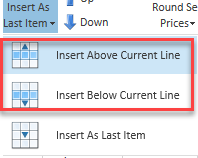
Remember, this setting sticks until you change it again. Be alert.
How to Insert a SubHeader and SubTotal into a Project
- Navigate to a Project Spreadsheet.
- Right-click on the row where the insertion should take place and select either option from the pop-up menu.

3a. After inserting a SubHeader into the spreadsheet, double-click on the row's Spec cell to change the text. Press the OK button to save.

3b. Add a SubTotal under each SubHeader section to show the subtotal for that part of the printed quote. In the image below, the SubTotal is under the “Kitchen” SubHeader.

- As shown below, SubHeaders and SubTotals appear as distinct sections within the published quote.


Clicking Edit Line Item opens the Line Item Editor dialog where you can modify that item, for the current project only:

Stock Spec
Clicking Stock Spec will replace the manufacturer’s specification text with text from a linked Stock item, if we have one.
Once you’ve changed it to Stock Spec, right-clicking again will enable you to toggle the Stock Spec back to the manufacturer’s content.
Configure
Clicking Configure (like on the project ribbon/toolbar), will reopen the Configuration tree for the highlighted item, as it’s now specified, & allow you to reconfigure the item’s options/accessories.
Click Configure to save updated configuration.
Item Status
Clicking Item Status (like on the project ribbon/toolbar) will drop down a color-coded status menu where you can select a different status.
By default, your items are active. Changing an item’s status will change the color of the item on the spreadsheet as shown.

Watch the Video
AQ Basic Training Chapter 10 — Project Navigation & Toolbars